Overview
Run images can sometimes be quite large files (several GB), as such it is preferable that these don't get uploaded through the browser for a few reasons, such as:
- Large file sizes can cause browser timeouts, memory issues and unreliable uploads.
- Browser uploads are more prone to network instability causing connection drops which would require restarting the entire upload
- Docker commands authenticated directly with the registry (where the run image is going to end up) so we avoid having intermediate storage on a web server.
- Faster uploads for reasons above
As you can see, pushing directly to the registry via docker is evidently prefferable. We just need to get the right commands to complete this push.
Get the commands via Stage2 webclient
If you don't have an operation in the Stage2 webclient yet and your interface only exists in JSON, skip to
Activating via Stage2kit
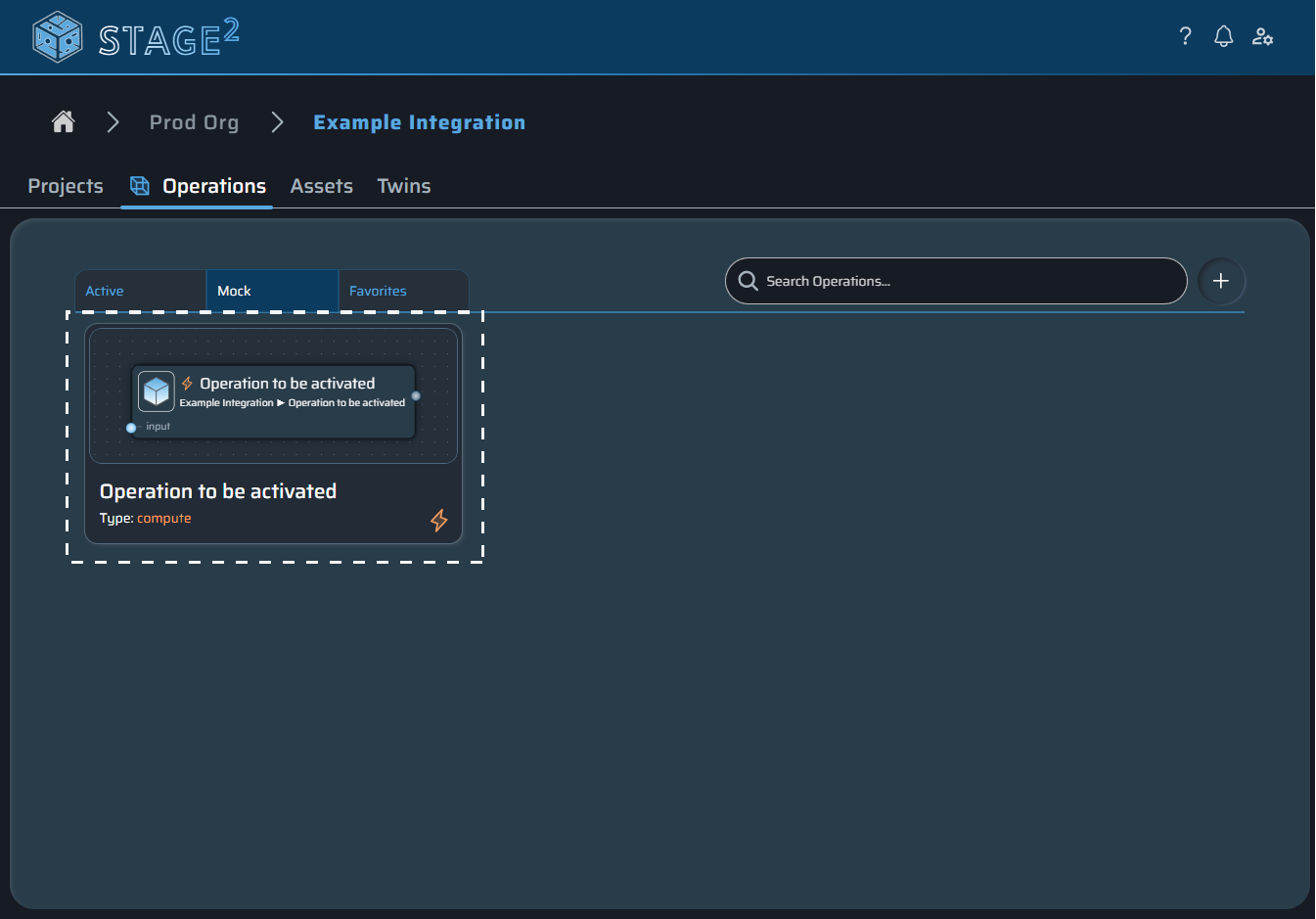
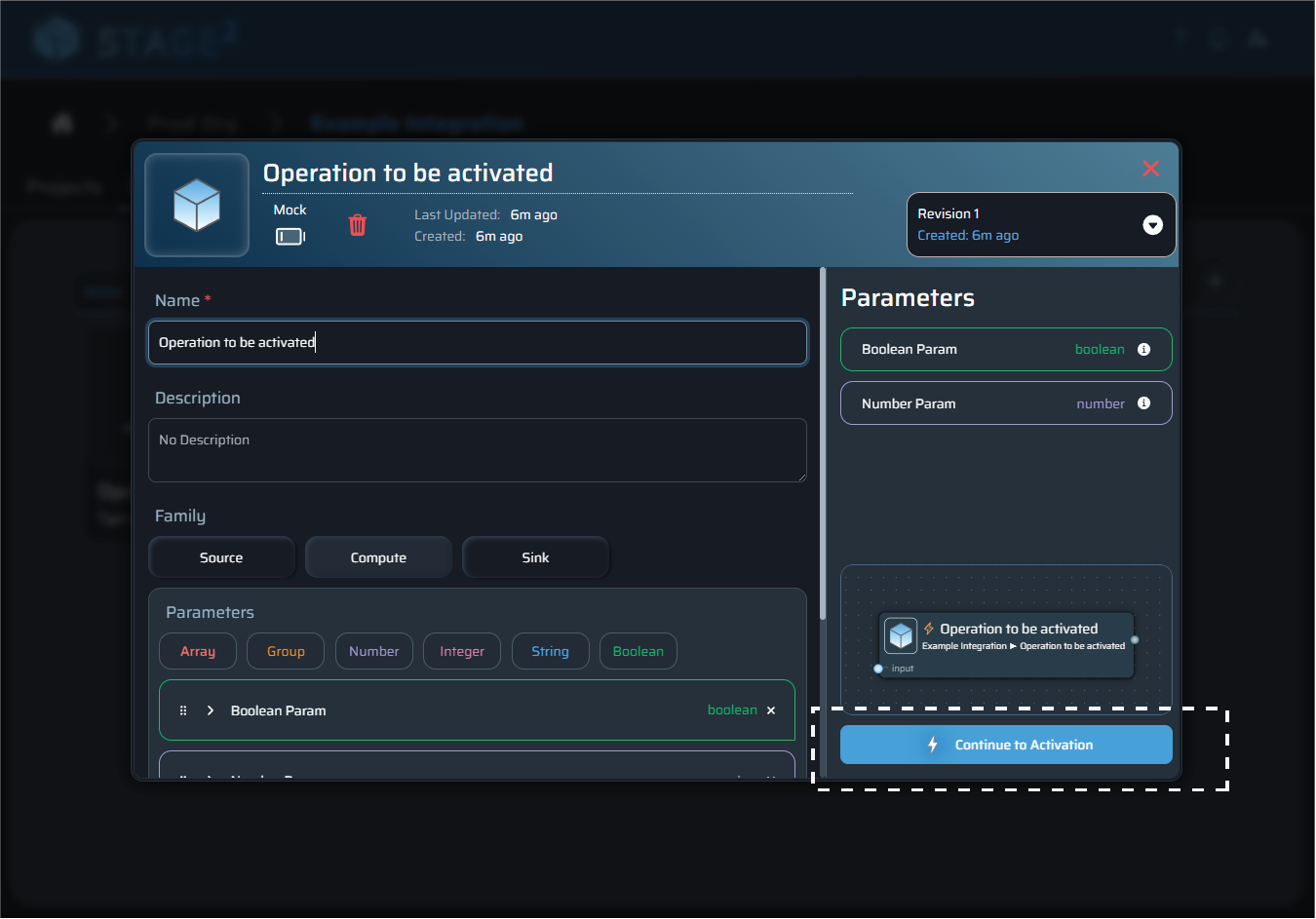
The easiest way to get the commands you need to push your run image directly to the centralized registry is to find your operation in the Stage2 webclient.
Option 1 - Image lives locally on your PC
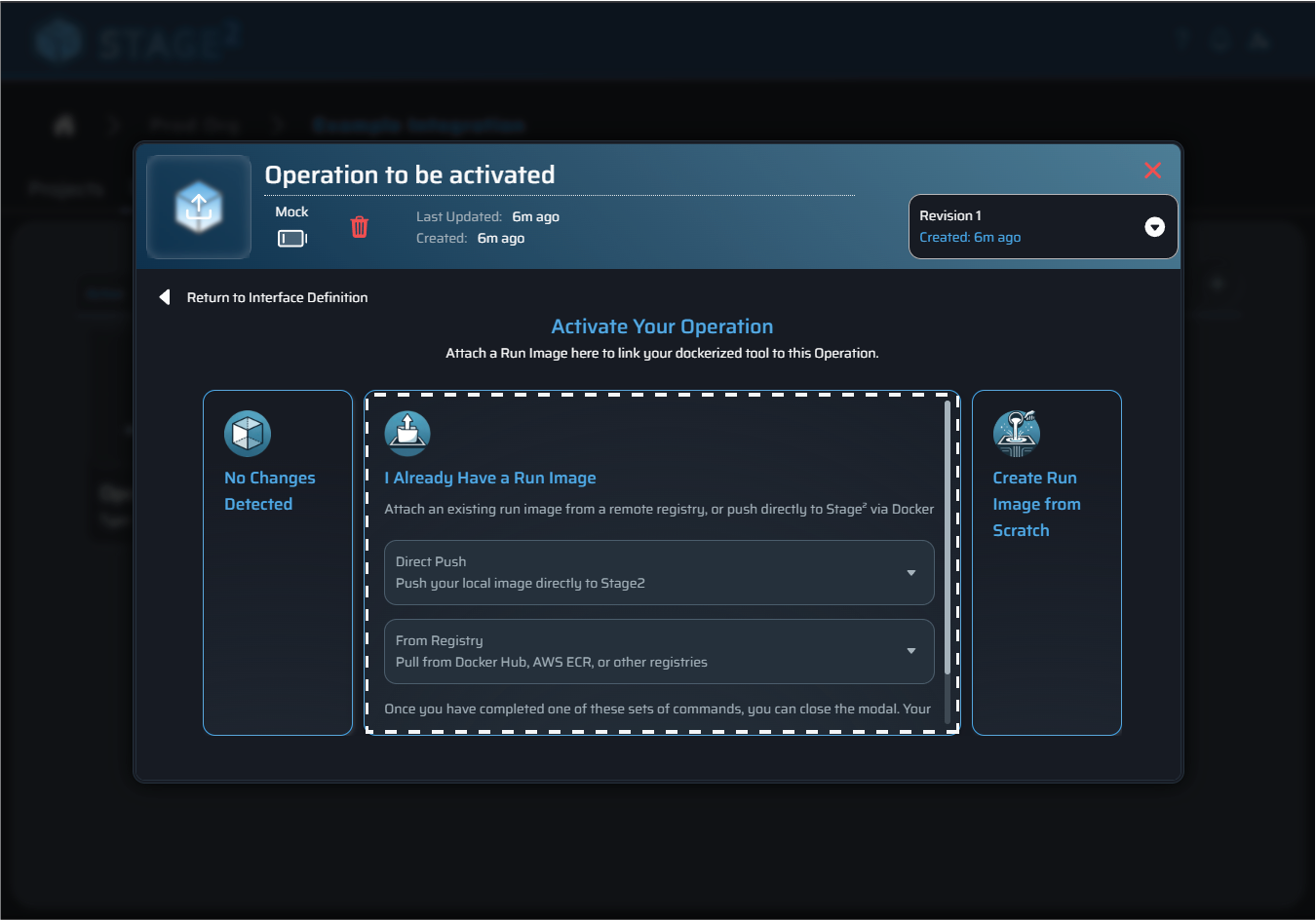
Select the first dropdown "Direct Push" and follow the instructions that are provided
This should look something like:
-
Login to stage2 docker registry
docker login -u "stage2" -p "0123abcdef45678..." registry.stage2.spatial-one.com -
Tag your image so stage2 knows to connect it to your operation
docker tag <your-image-reference> registry.stage2.spatial-one.com/112/1a2b3c4defg:0123456789 -
Push your image to the stage2 centralized registry
docker push registry.stage2.spatial-one.com/112/1a2b3c4defg:0123456789
Option 2 - Image already lives in a diffrent docker registry
Select the dropdown "From Registry" and follow the instructions that are provided.
These are the same commands, with one additional command at the start to pull the image from the registry it currently lives in:
docker pull <your-image-reference>